This is the step by step guide to show you how to add a Digg button to your Blog....
Digg is a social content website where your readers or you can submit content to. If you have a good story, members will 'digg' the post and write comments. As a blog owner, you may want to make it easy for and encourage your readers to submit and digg your articles.
Automatic Count and Vote Button
Before you do that though, you would want to take note of the following:-
1. Your blog should be set to save Post Pages. Post Pages are archived blog posts published to their own web page. Each post will have a unique URL, which is required by Digg for the individual posts to be submitted. To verify or enable it, login to your Blogger Dashboard. Under Settings-> Archiving, set the “Enable Post Pages?” to “Yes” and save the settings.
2. This template hack will put a Digg button to every post. You are therefore not able to choose which post you want to include or exclude a button. If you would prefer to have a Digg button added only to some posts, read the later part of this article on “Button for selective posts.”
3. The code reads the URL of the individual blog page and this shall be the URL used for submission of the story to Digg.
Under “Template”, click the “Edit HTML” tab. Block copy the entire HTML code for your site and save it in a text file. You can also click the "Download Template" link. This is one of the two necessary steps whenever you want to change the template. The second step is of course to “Preview” the new changes, and save the changes only when you are satisfied. The backup you have saved in a text file will come in handy when you accidentally click to save the changes without previewing them. With a backup, you can easily restore the template to the prior state if need be.
Click the box next to “Expand Widget Templates”. Scroll about two-thirds down the template to look for the code that reads:-
<p><data:post.body/></p>
If you want the button to show at the top right corner of your post, replace the above code with this.
<div style='float:right; margin-left:10px;'><script type='text/javascript'>digg_url="<data:post.url/>";</script><script src='http://digg.com/tools/diggthis.js' type='text/javascript'/></div><p><data:post.body/></p>
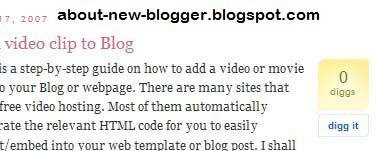
This is what you get:-
 Please leave a comment if you like this post or subscribe to this blog via RSS or Email.
